 AyMINE – Technical documentation

Interfaces to other systems
Enterprise Architect Connector
Business excelenece
Balance Scroecards
Task & Project Control
- Send customer answer in regards to the complaint
- Bundle of Documentation and records
- Test and Inspection Management
- Qualification of user or contact
- Project role
- Methodological framework
- Physical and virtual location management
- My areas
- Kanban Task Overview
- Personal Task
- Internal helpdesk
- Customer Care Centre
- Project baseline
- Return project plan by baseline
- Project Schedule
- Processing time sheets
- Project management items
- Activation buttons
- Why some data can't be deleted
- Starting events
- Qualification of user or contact
- task_taskobjects
- Project
- Reminders and Messages
- eventobj_raisingevents
- decision_decobjects
- eventobj_startingevents
- eventobj_eventbuttons
- Hierarchy of testi types
- Deal management
- FMEA criteria for detection evaluation
- FMEA system functionality analysis
- Methodology how to conduct FMEA
- FMEA analysis of the failure occurence
- Analysis of the FMEA Severity
- Support for FMEA Analysis
- Management of responsibilities - RACI Matrix
- RACI matrix for project
- Improvements and Preventive Measures
- Plan
- Notice – example of use
- tskproblem_terminology
- 8D report - quality problem resolution
- Task Scheduling to the right time and scope
- Administration of the Task Management Module
- Adminitration of areas, projects, calendars
- Discussion
- System rights for the task management module
- Project Planning
- Employee Tasks
- Incident and Quality Issue Management
- Collaborative Resolution of Multiple Problems
- List of business areas
- Required qualifications
- Plan template / strategy
- Management and documentation of the decision
- Configuration Package
- Record template
- Change management process in a project
- Task list
- Requirements
- Team Member
- Right to Manage Qualifications
- Obligation
- Competencies and Skills
- Problems, tickets and their management
- Meeting
- Package definition
- Terminology and Nomenclature
- Data Area
- Risk
- Task
- Business event
- Task, project & quality management
- Records and protocols
- Directives and Policies
- Events
- Risk Pattern
- Information
- Project definition
- Activity log
- eventinstances
- Personal calendar
- Objects of decision making
- Event activation buttons
- Objects affected by the problem
- Variant decision-making
- Recorded activities
- Self-Reminders
- Assignment of a New Task According to Methodology
- Objects related to the task pattern
- Effect of the task on the right to modify the atta
- Level of Competence
- Manager approval with the task report
- Region / project / methodology
- Manage your marks
- Task patterns saves work and improve quality
- Management system
- Task planning both in project and daily business
- Project Team
- Events and meetings
- Events and meetings
- List of event instances
- moduleclientoptions
- Processed objects
- Mark patterns
Interprocess management
Human Resources
- roles
- Staffer / Worker Management
- Human resources
- Employee access to the contract files
- Personalistics - User Permissions and roles
- Candidates Management
- Manage department / division data
- Job Position
- Employee dashboard with personal data
- An overview of your staff
- Responsible HR Manager
- Synchronizing staff and system users
- Management of the staffer contracts
- Safety of the HR module
Asset Management
- Products, assets and sales
- Tendering and purchasing
- Analytical model
- Product Supplier
- Product Categories
- Product or Product Property
- Manage projects by goals
- Create offer for premium or B2B clients
- Offers summaries
- Create and recalculate offer using price lists
- Offer and Price Access Rights
- Creating and processing orders
- System order status query
- Order Reports
- Pricing
- Pricing – volume discounts
- Products and Goods
- Product status and change
- Product units
- Definition and Control Quality Criteria
- Why Quality Criteria is a requisite part of QMS
- DFEMA - FMEA of the product design
- HARA for product
Customer Relationship - CRM
- Contacts and directories module (
- System Permissions and CRM Module Settings
- Customer Order Overview
- Address book management and protection
- Address book list and management
- Privacy policy
- Send bulk messages in accordance with GDPR
- Link in bulk message to set preferences or unsubscribe
- GDPR: Support to set preferences over the web
- GDPR: Support for subject forgetting
- Sending Bulk Emails - manual
- Contracts
- Partner in a contract
- Generate messages from system with patterns and AI
- Group of contacts from address books for better management
- Evidence of contacts and related business data
Finance management
System modules
System management
- moduleclientoptions
- Electronic sign even on mobile device
- formattedtexts
- System Configuration
- Processes in use
- Client
- Member Management for churches, non-profit organisations
- Configure gateways for external messages
- Corporate email and communication processing
- Email messages
- Rules for external messages
- Secure business communication
- Sending SMS directly from CRM
- Call directly from CRM
- Documents and files
- Additional functions with files
- Copying and moving files between objects
- Picture presentation
- Public link to the document
- Recent Files
- Dashboard
- Object location on the board
- Client items
- Revisions and comments
- Securing posts and internal discussions
- Translations
- Record Relationships
- Relation types
- System Groups and Teams for rights settings
- User Processes
- System module
- System User
- User administration
- User Administration
- Connecting users to VOIP PBX
- Trusted User Device
- Secure Key Wallet - Safe storage for digital keys
- Data vault for Company secret & Classified data storage
Framework
- AyMINE frm module - corestone of the ecosystem
- Description of the view of the record details
- Private Notes to Records that no one can read
- AyMINE Access control and security
- Introduction to the application
- Using Drag & Drop even on mobile devices
- AyMINE icons are language for fast orientation
- Delete object to the trash
- Principal dashboard
- Settings your own configuration
- AyMINE Gestures and Keyboard Shortcuts
- AyMINE User Rights Control
- Install AyMINE to windows
- About AyMINE
- Work with list of records
- AyMINE on mobile device
- List of records
- How filtering in lists works
- cliplink
- System rights
- Module is the principal brick of the aymine ecosystem
Project Schedule
- What you see in the schedule
- What the schedule is used for
- Print the schedule for the customer
- Drag & Drop for scheduling
- Access the Gantt model from the dashboard:
- Print a part of the schedule
- Importing a project from MS Project
- Where to Next
The schedule provides a graphical representation of the tasks (activities) in a project and supports easy planning
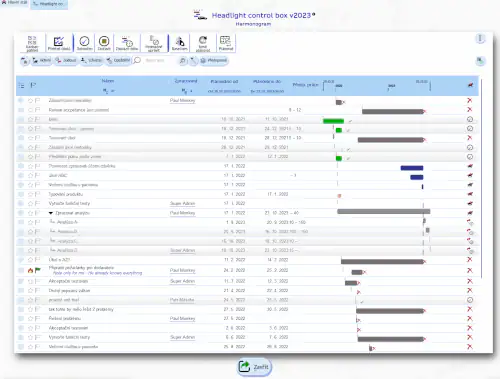
What you see in the schedule
The schedule is a task overview with a graphical representation that shows
- When the activity is scheduled for
- How its current execution is going
- The status of the activity (whether it is completed, overdue)
The figure describes the meanings of each element:
What the schedule is used for
The main purpose of a schedule is to make planning and managing a project as easy as possible. It allows activities to be easily shifted, interlinked, and scheduled according to the sequences.
The schedule allows you to see comparisons with an older version of the schedule, or even with two different saved versions. This makes it easy to monitor the impact of changes or to check that after replanning the schedule still meets the deadlines agreed with the customer. See the section on baselines for information about saved schedule states.
You can work with tasks in the schedule
Gantt's task list is a full-featured task list. You can switch the schedule to editing and edit directly in the schedule the expected processing time of tasks and other data. Of course, you can automatically schedule part or all of the schedule.
Remember that the system does not schedule by itself, so it won't throw off your agreed-upon deadlines. Only the project manager can run the scheduling function.
Print the schedule for the customer
The schedule supports printing directly by browser functions. Use the print command (CTRL+P) and the entire schedule will print. We recommend setting the print to paper width, or to display only a few columns.
Note: It is not possible to generate the schedule directly to PDF. You must use the browser print and print to PDF.
Drag & Drop for scheduling
Gantt chart supports schedule editing using Drag & Drop. When you drag a task, the system will offer you to create links to a new task, or include it under another task. This makes it easy to modify the project plan.
Access the Gantt model from the dashboard:

Access from task overview:

Print a part of the schedule
You probably don't want to send the customer a schedule with all the details. Therefore, we recommend to wrap up the stages and print only the stage summary.
For projects that follow the project management methodology, you can only display the tasks prescribed by the methodology. Use the task filter  Prescribed and only tasks created according to the sample project or from the methodology tasks will be displayed in the schedule. This makes it easy for the auditor to generate a schedule showing the required steps, but without details or steps implemented beyond the required methodology.
Importing a project from MS Project
Import procedure
You can import a project prepared in MS Project into AyMINE:
- Export a schedule from MS Project
- Open a project and a schedule in AyMINE.
- Use the function in the project schedule – Scheduling – Import from MS Project.
- Drag the XML file generated from MS Project into the file field
What is imported
The function imports tasks that are not yet in the schedule. Therefore, you can even repeatedly import new tasks from MS Project, existing tasks are skipped during import.
The import from MS Project includes only tasks and their continuations. Resources and other project components are not imported.
Where to Next
- How to schedule tasks in a project
- To work with the schedule it is useful to understand the baseline. More about baseline here
- More about working with the project in general here
- How to revert to an earlier version of the plan is described in the documentation of the function.